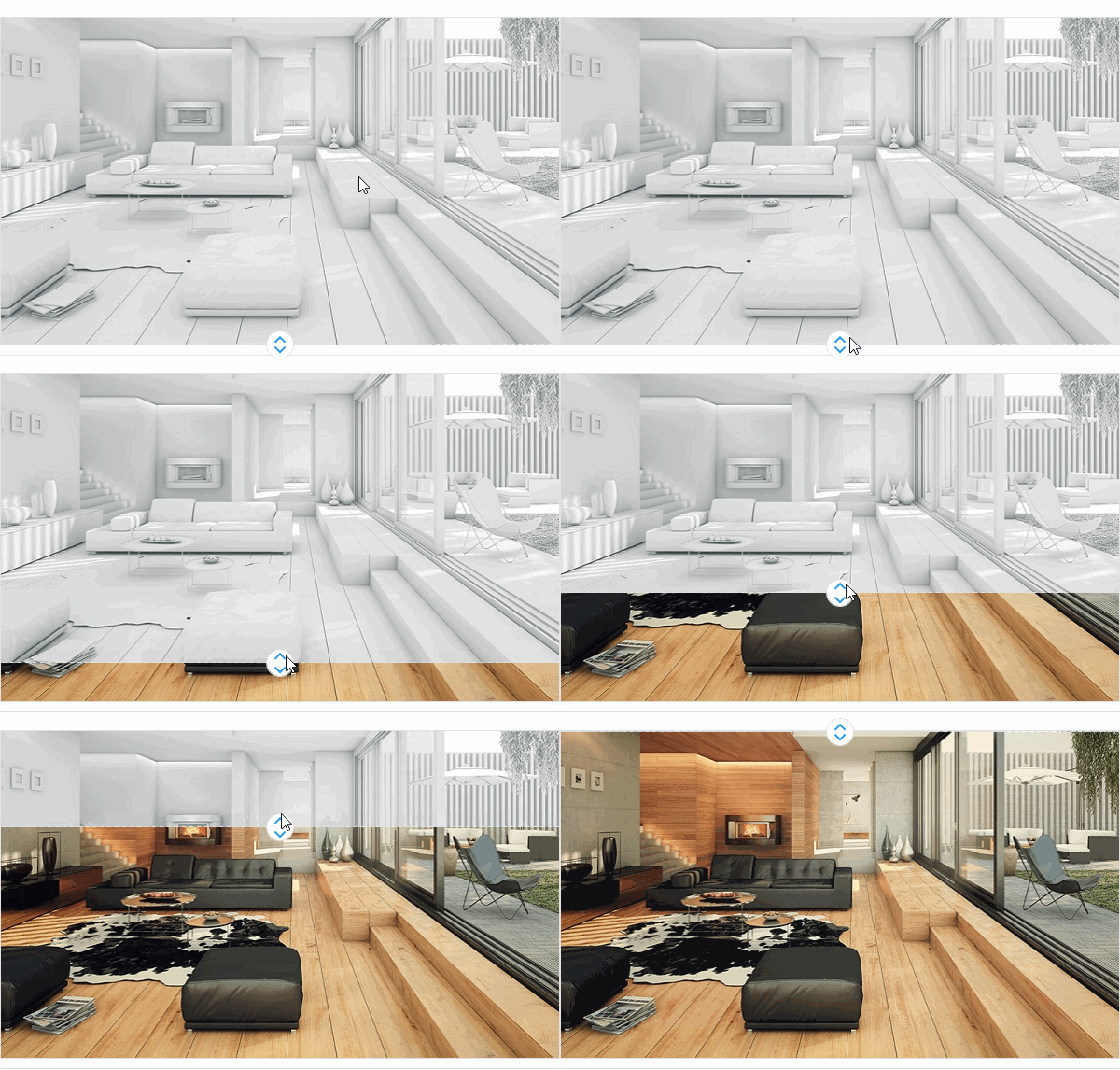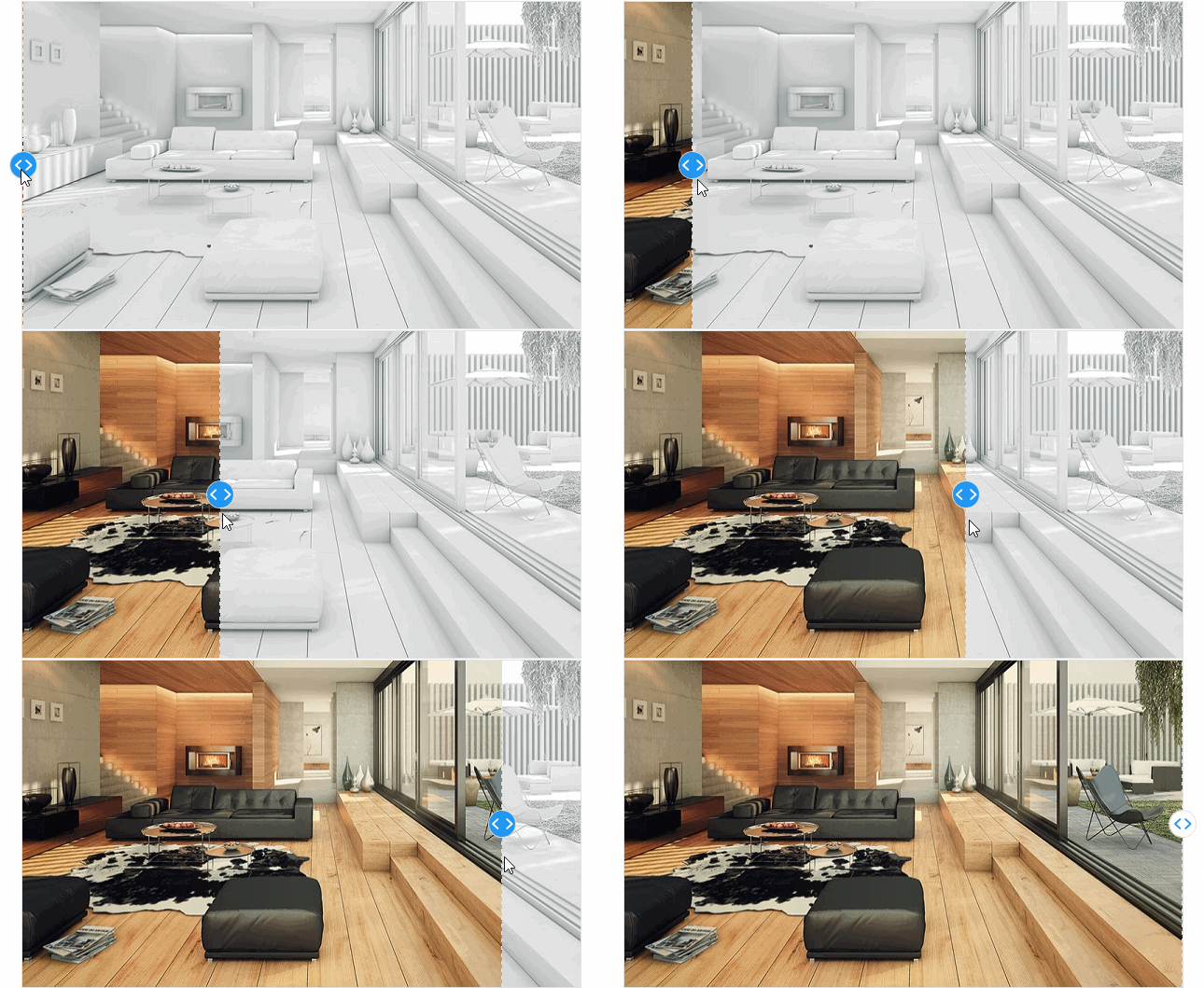
With the help of the comparison slider, you can easily see the difference before and after the element changes.
cs
public class CompareSlider : SliderAttributes
| Property | Description | Default Value | Remarks |
|---|---|---|---|
| TargetContent | Target Content | ||
| SourceContent | Source content (current content) | ||
| Value | |||
| Orientation |
Case
xml
<WrapPanel ItemHeight="384" ItemWidth="632">
    <hc:CompareSlider Value="5" Width="600" Height="352">
        <hc:CompareSlider.TargetContent>
            <Border>
                <Border.Background>
                    <ImageBrush ImageSource="/HandyControlDemo;component/Resources/Img/b1.jpg"/>
                </Border.Background>
            </Border>
        </hc:CompareSlider.TargetContent>
        <hc:CompareSlider.SourceContent>
            <Border>
                <Border.Background>
                    <ImageBrush ImageSource="/HandyControlDemo;component/Resources/Img/b2.jpg"/>
                </Border.Background>
            </Border>
        </hc:CompareSlider.SourceContent>
    </hc:CompareSlider>
    <hc:CompareSlider Orientation="Vertical" Value="5" Width="600" Height="352">
        <hc:CompareSlider.TargetContent>
            <Border>
                <Border.Background>
                    <ImageBrush ImageSource="/HandyControlDemo;component/Resources/Img/b1.jpg"/>
                </Border.Background>
            </Border>
        </hc:CompareSlider.TargetContent>
        <hc:CompareSlider.SourceContent>
            <Border>
                <Border.Background>
                    <ImageBrush ImageSource="/HandyControlDemo;component/Resources/Img/b2.jpg"/>
                </Border.Background>
            </Border>
        </hc:CompareSlider.SourceContent>
    </hc:CompareSlider>
</WrapPanel>