
The CalendarWithClock control consists of a calendar and a clock, allowing the user to select the date and time with the mouse.
[TemplatePart(Name = ElementButtonConfirm, Type = typeof(Button))]
[TemplatePart(Name = ElementClockPresenter, Type = typeof(ContentPresenter))]
[TemplatePart(Name = ElementCalendarPresenter, Type = typeof(ContentPresenter))]
public class CalendarWithClock : Control
Create Date Picker
<hc:CalendarWithClock />var dateTimePicker = new CalendarWithClock();The generated CalendarWithClock is shown below:
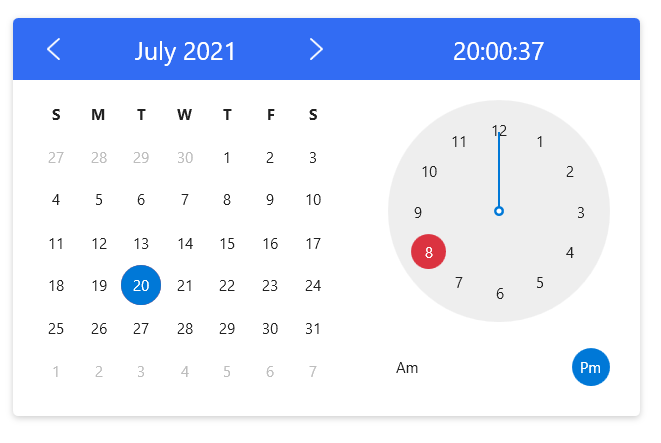
Select date and time
Select the date and time on the calendar and clock with the mouse, and then click the OK button to update the date and time of the CalendarWithClock control.
You can also set the date like this in a XAML clock or code.
<hc:CalendarWithClock SelectedDateTime="{x:Static system:DateTime.Now}"/>calendarWithClock.SelectedDateTime = DateTime.Now;Attributes
| Property | Description |
|---|---|
| SelectedDateTime | Get or set the currently selected date and time |
| DateTimeFormat | Gets or sets the format used to display the selected date and time |
| DisplayDateTime | Get or set the date to be displayed |
| ShowConfirmButton | Gets or sets a value indicating whether to show OK button |
| VerifyFunc | Get or Set Data Validation Delegation |
| IsError | Get or set whether the data is wrong |
| ErrorStr | Get or Set Error Alert |
| TextType | Get or Set Text Type |
| ShowClearButton | Gets or sets whether to show the clear button |
Method
| Method | Description |
|---|---|
| VerifyData () | Verify Data |
NOTE
you can change calendarwithclock ui culture:
ConfigHelper.Instance.SetLang("en");