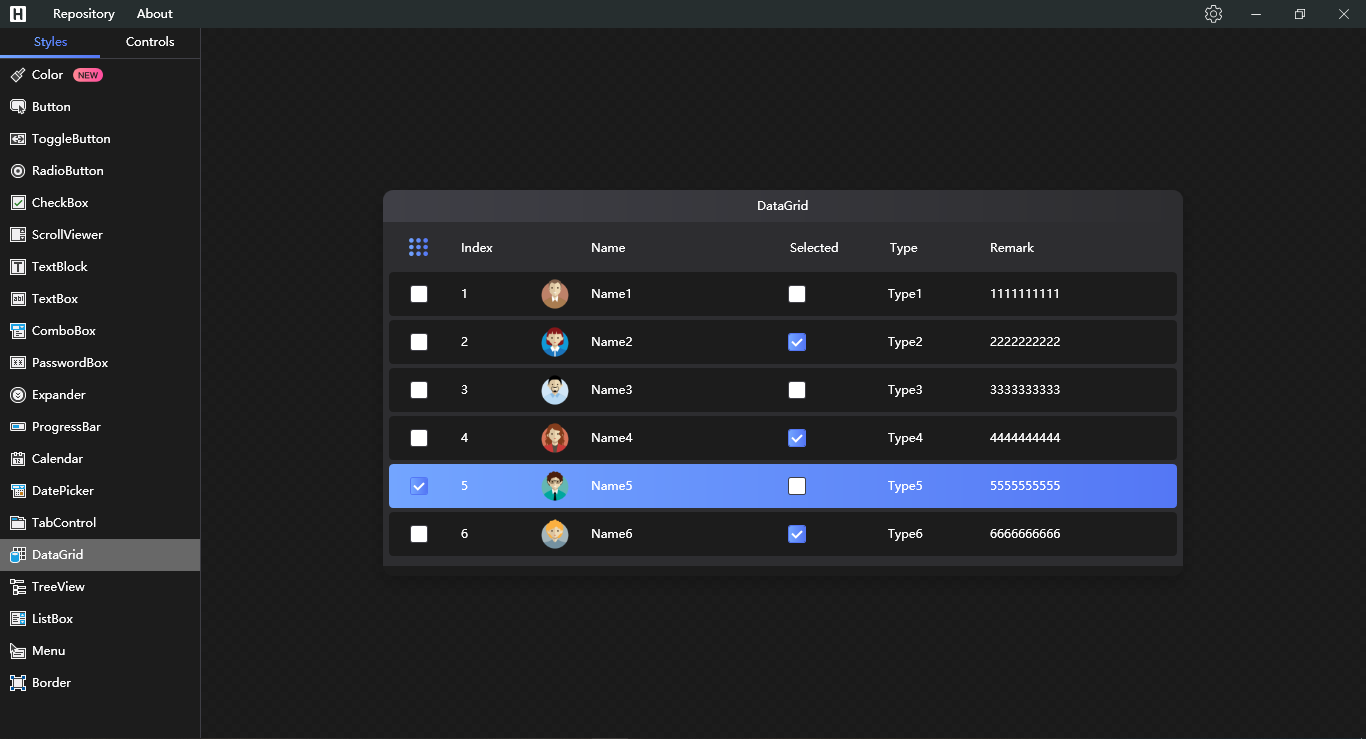
Changing Theme
There is 3 themes (Light, Dark and Violet) that you can use in your application.
Set Skin in Xaml
set Skin tag in <hc:Theme
<ResourceDictionary.MergedDictionaries>
     <hc:Theme Skin="Dark"/>
</ResourceDictionary.MergedDictionaries>
Set Skin in Code-Behind
set a name for <hc:Theme and create a function
<ResourceDictionary.MergedDictionaries>
     <hc:Theme Name="HandyTheme"/>
</ResourceDictionary.MergedDictionaries>
internal void UpdateSkin(SkinType skin)
{
SharedResourceDictionary.SharedDictionaries.Clear();
ResourceHelper.GetTheme("HandyTheme", Resources).Skin = skin;
Current.MainWindow?.OnApplyTemplate();
}WARNING
In older versions, follow this
<Application.Resources>
    <ResourceDictionary>
        <ResourceDictionary.MergedDictionaries>
            <ResourceDictionary Source="pack://application:,,,/HandyControl;component/Themes/SkinDefault.xaml"/>
            <ResourceDictionary Source="pack://application:,,,/HandyControl;component/Themes/Theme.xaml"/>
        </ResourceDictionary.MergedDictionaries>
    </ResourceDictionary>
</Application.Resources>
public void UpdateSkin(SkinType skin)
{
SharedResourceDictionary.SharedDictionaries.Clear();
Resources.MergedDictionaries.Add(ResourceHelper.GetSkin(skin));
Resources.MergedDictionaries.Add(new ResourceDictionary
{
Source = new Uri("pack://application:,,,/HandyControl;component/Themes/Theme.xaml")
});
Current.MainWindow?.OnApplyTemplate();
}now you can change your theme in this way:
UpdateSkin(SkinType.Dark);Themes
| Name |
|---|
| Default |
| Dark |
| Violet |
Accent Color
you can change AccentColor
<ResourceDictionary.MergedDictionaries>
     <hc:Theme AccentColor="Red"/>
</ResourceDictionary.MergedDictionaries>
SyncWithSystem
Sync your applicatio theme with windows 10 theme
<ResourceDictionary.MergedDictionaries>
     <hc:Theme SyncWithSystem="true"/>
</ResourceDictionary.MergedDictionaries>
Adding or Overriding styles and colors according to the theme of the program
you can override or add colors and styles, for doing that follow the instructions
first create folders: Resources\Themes\Styles Resources\Themes\Basic\Colors
second create xaml
Resources\Themes\Theme.xaml
Resources\Themes\SkinDark.xaml
Resources\Themes\SkinDefault.xaml
Resources\Themes\SkinViolet.xaml

Resources\Themes\Styles\Style.xaml

Resources\Themes\Basic\Colors\Colors.xaml
Resources\Themes\Basic\Colors\ColorsDark.xaml
Resources\Themes\Basic\Colors\ColorsViolet.xaml

Resources\Themes\Basic\Basic.xaml
Resources\Themes\Basic\Brushes.xaml
Resources\Themes\Basic\Converters.xaml
Resources\Themes\Basic\Fonts.xaml
Resources\Themes\Basic\Geometries.xaml
If you follow these instructions, your styles and colors will change with a dark and light theme
Colors
You can put the colors in this color files.
Resources\Themes\Basic\Colors\Colors.xaml
Resources\Themes\Basic\Colors\ColorsDark.xaml
Resources\Themes\Basic\Colors\ColorsViolet.xaml
To support the dark or violet mode, you need to write all three files You can also skip them and use only the Colors.xaml file (But then your colors will not change with the theme)
<Color x:Key="PrimaryColor">#326cf3</Color>WARNING
The key must be the same in all files
Brushes, Converters, Fonts, Geometries, Styles
You can put any of the brushes, converters, fonts, styles and geometries In those files.
Basic
We address Brushes.xaml, Geometries.xaml, Converters.xaml and Fonts.xaml dictionaries in this file, So our file will be like this
 <ResourceDictionary xmlns="http://schemas.microsoft.com/winfx/2006/xaml/presentation">

    <ResourceDictionary.MergedDictionaries>
        <ResourceDictionary Source="Brushes.xaml"/>
        <ResourceDictionary Source="Geometries.xaml"/>
        <ResourceDictionary Source="Converters.xaml"/>
        <ResourceDictionary Source="Fonts.xaml"/>
    </ResourceDictionary.MergedDictionaries>

</ResourceDictionary>
SkinDark.xaml, SkinViolet.xaml, SkinDefault.xaml
We need to specify the color files in these files, For example, we do this for SkinDark.xaml file
<ResourceDictionary xmlns="http://schemas.microsoft.com/winfx/2006/xaml/presentation">

    <ResourceDictionary.MergedDictionaries>
        <ResourceDictionary Source="Basic/Colors/ColorsDark.xaml"/>
    </ResourceDictionary.MergedDictionaries>

</ResourceDictionary>
Theme.xaml
We address Basic.xaml and Style.xaml dictionaries in this file, So our file will be like this
<ResourceDictionary xmlns="http://schemas.microsoft.com/winfx/2006/xaml/presentation">

    <ResourceDictionary.MergedDictionaries>
        <ResourceDictionary Source="Basic/Basic.xaml"/>
        <ResourceDictionary Source="Styles/Style.xaml"/>
    </ResourceDictionary.MergedDictionaries>

</ResourceDictionary>
Last Step
create a class called DemoTheme.cs this class should inherit from Theme
NOTE
HandyControlDemo is your application namespace
public class DemoTheme : Theme
    {
        public override Uri ThemeUri => new Uri("pack://application:,,,/HandyControlDemo;component/Resources/Themes/Theme.xaml");

        public override ResourceDictionary GetSkin(SkinType skinType) =>
            ResourceHelper.GetSkin(typeof(App).Assembly, "Resources/Themes", skinType);
    }
now in app.xaml
<ResourceDictionary.MergedDictionaries>
     <hc:Theme Name="HandyTheme"/>
     <resources:DemoTheme Name="DemoTheme"/>
</ResourceDictionary.MergedDictionaries>
and for changing theme we should update our UpdateSkin function
internal void UpdateSkin(SkinType skin)
{
    SharedResourceDictionary.SharedDictionaries.Clear();
    ResourceHelper.GetTheme("HandyTheme", Resources).Skin = skin;
    ResourceHelper.GetTheme("DemoTheme", Resources).Skin = skin;

    Current.MainWindow?.OnApplyTemplate();
}