
The DatePicker control allows the user to select a date by typing the date in the textbox or using the drop-down calendar control.
[TemplatePart(Name = ElementTextBox, Type = typeof(DatePickerTextBox))]
public class DatePicker : System.Windows.Controls.DatePicker, IDataInput
Create DatePicker
<hc:DatePicker />var datePicker = new DatePicker();The generated DatePicker is shown below:

Select date
You can enter the date through the textbox, or click the button to the right of the text box to open the drop-down calendar control to select the date.
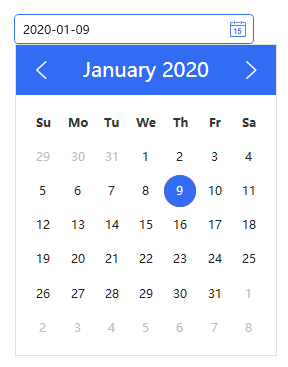
You can also set the date like this in a XAML clock or code.
<hc:DatePicker SelectedDate="{x:Static system:DateTime.Now}"/>datePicker.SelectedDate = DateTime.Now;Set title and placeholder text
You can add Headers and Placeholders to the DatePicker to indicate to the user what they do.
<hc:DatePicker hc:InfoElement.TitleWidth="140"
               hc:InfoElement.TitlePlacement="Left"
               hc:InfoElement.Placeholder="Please enter the content"
               hc:InfoElement.Title="Title" />
Styles
| Available Styles |
|---|
| DatePickerPlus.Small |
Attributes
| Property | Description |
|---|---|
| SelectedDate | Get or set the currently selected date |
| SelectionTextBrush | |
| SelectionOpacity | |
| SelectionBrush | |
| CaretBrushProperty |
NOTE
you can change datepicker ui culture:
ConfigHelper.Instance.SetLang("en");