
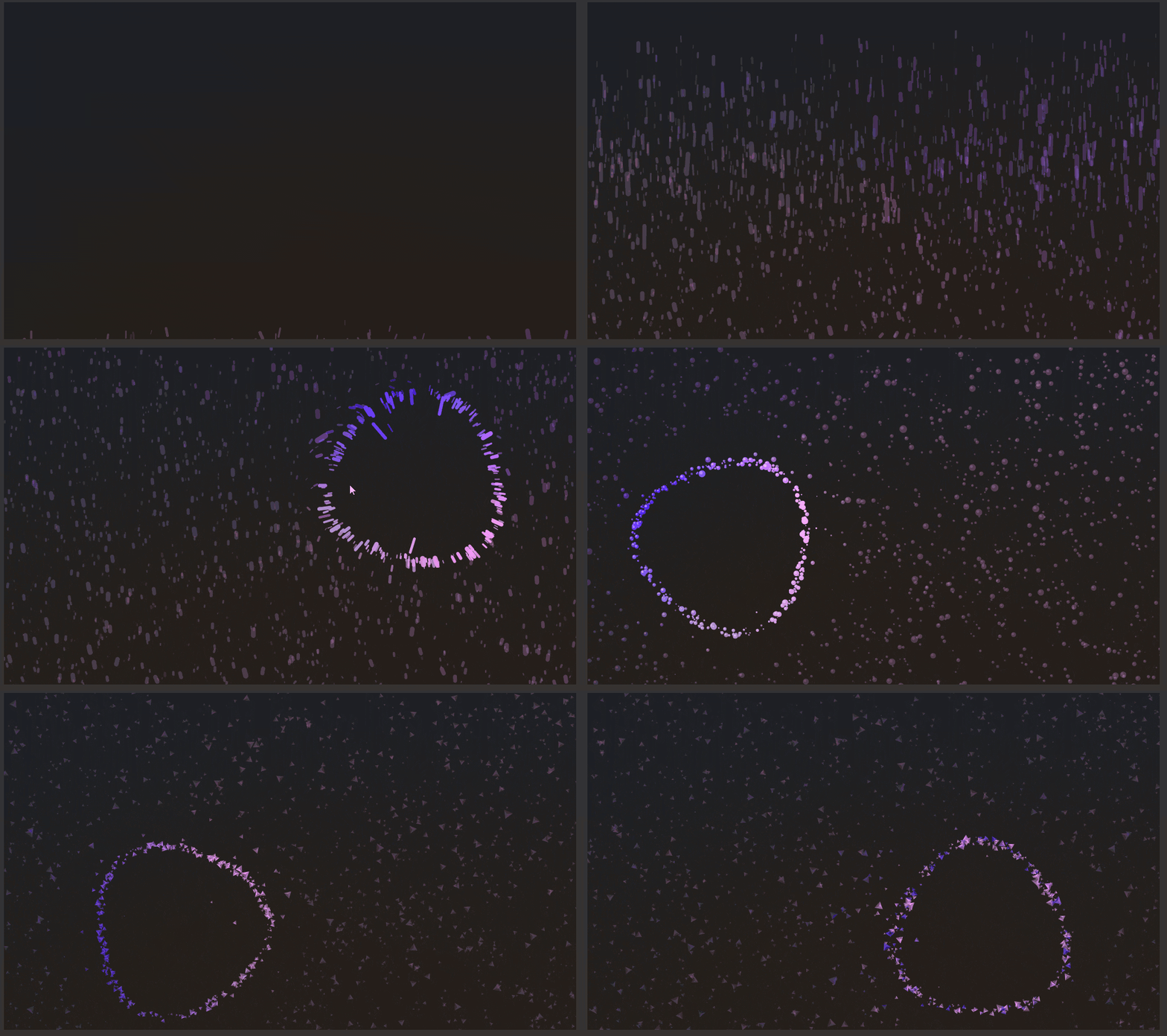
An interactive, GPU-accelerated particle field. Particles rest on a drifting grid of "home" positions, lift into a glowing ring around the pointer, orbit it with a wave distortion, and burst outward on click. When the pointer is idle the ring wanders on its own.
Rendering uses Win2D (CanvasAnimatedControl), created when the control loads and disposed when it unloads.
Quick start
<dev:Antigravity Height="480" /><dev:Antigravity
Height="480"
ColorMode="Conic"
ParticleCount="1500"
ParticleShape="Capsule"
MagnetRadius="170"
RingRadius="120" />Field.ParticleShape = AntigravityParticleShape.Sphere;
Field.ColorMode = AntigravityColorMode.Radial;
Field.Replay();The control fills its parent. Give it a Height (or place it in a star-sized row) so it has something to draw into.
Interaction
| Input | Effect |
|---|---|
| Move pointer | Ring follows the pointer |
| Hold pointer down | Ring contracts and the orbit speeds up |
| Release pointer | Particles near the ring burst outward (requires ClickBurst) |
| Pointer idle for 2 s | Ring drifts on its own (requires AutoAnimate) |
Set IsInteractive="False" to ignore the pointer entirely.
Properties
Particles
| Property | Type | Default | Description |
|---|---|---|---|
ParticleCount | int | 1200 | Number of particles. Clamped to 0–5000. Changing it at runtime adds or removes particles without restarting. |
ParticleSize | double | 0.9 | Base particle size multiplier. Minimum 0.05. |
ParticleShape | AntigravityParticleShape | Capsule | Shape drawn for each particle. |
ParticleVariance | double | 1 | Strength of the per-particle size pulse. Clamped to 0–1. |
PulseSpeed | double | 3 | Speed of the size pulse. |
DepthFactor | double | 1 | How strongly the fake depth changes particle size and opacity. 0 flattens the field. |
Ambient | double | 0.25 | Opacity of particles outside the ring. Particles inside the ring are fully opaque. Clamped to 0–1. |
Ring and motion
| Property | Type | Default | Description |
|---|---|---|---|
MagnetRadius | double | 170 | Distance from the pointer within which particles are pulled into the ring. Minimum 1. |
RingRadius | double | 120 | Radius of the ring. Minimum 0. |
FieldStrength | double | 10 | How tightly particles hug the ring. Lower values spread them into a thicker band. |
LerpSpeed | double | 0.05 | How quickly the ring follows its target and how stiffly particles spring. Clamped to 0.005–1. The particle spring stiffness is capped at 0.5 for stability. |
RotationSpeed | double | 0 | Orbit speed of the ring in radians per second. Negative values reverse the direction. |
WaveSpeed | double | 0.4 | Speed of the wave distortion on the ring. |
WaveAmplitude | double | 1 | Strength of the wave distortion. |
WaveCount | int | 3 | Number of waves around the ring. |
Color
| Property | Type | Default | Description |
|---|---|---|---|
Palette | Brush | theme resource AntigravityPaletteBrush | Colors used for the particles. See Palette. |
ColorMode | AntigravityColorMode | Conic | How colors are assigned. |
ColorSpeed | double | 0.05 | Speed at which the Conic palette rotates. |
Behavior
| Property | Type | Default | Description |
|---|---|---|---|
AutoAnimate | bool | true | Moves the ring automatically when the pointer is idle or absent. |
IsInteractive | bool | true | Enables pointer tracking. |
ClickBurst | bool | true | Enables the press-and-release burst. |
Intro | bool | true | Particles rise into place when the field is built. |
IsPaused | bool | false | Pauses updates and rendering. The control also pauses automatically while Visibility is Collapsed. |
Methods
| Method | Description |
|---|---|
Replay() | Rebuilds the particle field and replays the intro. |
Enums
AntigravityParticleShape
Capsule, Sphere, Box, Tetrahedron
Capsule particles stretch along their direction of travel. The other shapes spin.
AntigravityColorMode
| Value | Description |
|---|---|
Conic | Color follows the angle around the ring and rotates over time. The palette wraps back to its first color. |
Radial | Color follows the distance from the ring. |
Random | Each particle keeps a fixed random position on the palette. |
Palette
Palette accepts any GradientBrush or SolidColorBrush. Gradient stops are sorted by offset and sampled into a 256-entry lookup table.
<dev:Antigravity>
    <dev:Antigravity.Palette>
        <LinearGradientBrush>
            <GradientStop Offset="0" Color="#00C2FF" />
            <GradientStop Offset="0.5" Color="#7A5CFF" />
            <GradientStop Offset="1" Color="#FF5C9D" />
        </LinearGradientBrush>
    </dev:Antigravity.Palette>
</dev:Antigravity>- If
Paletteisnull, the control'sForegroundis used. - Stop alpha is ignored. Opacity is controlled by
AmbientandDepthFactor. - Brushes that are neither gradient nor solid (acrylic, image) fall back to white.
- Changes to a
SolidColorBrush.Color, or to theColororOffsetof an existing gradient stop, update the control live. Adding or removing stops on a live brush is not detected; assign a new brush toPaletteinstead. - The default palette is defined per theme (
Default,Light,HighContrast) by theAntigravityPaletteBrushresource.
Customizing the default palette
Override the resource in your app resources:
<ResourceDictionary.ThemeDictionaries>
    <ResourceDictionary x:Key="Default">
        <LinearGradientBrush x:Key="AntigravityPaletteBrush" StartPoint="0,0" EndPoint="1,0">
            <GradientStop Offset="0" Color="#00C2FF" />
            <GradientStop Offset="1" Color="#FF5C9D" />
        </LinearGradientBrush>
    </ResourceDictionary>
</ResourceDictionary.ThemeDictionaries>
Performance notes
- Cost scales with
ParticleCount. A few thousand particles is fine on most hardware; the cap is 5000. Tetrahedrondraws three filled geometries per particle and is the most expensive shape.- Set
IsPaused="True"when the field is off-screen but still visible in the tree, for example behind another page in aFramecache.
Lifecycle
The canvas is created on Loaded and disposed on Unloaded. Navigating away and back rebuilds the field, so the intro plays again. Set Intro="False" to start with the particles already in place.
Demo
you can run demo and see this feature.