
Easy Ways
Download the source code or reference the control library in Nuget mode or use VSIX Extension
The difference between official and unofficial versions
HandyControls is Unofficial version Which has all the features of the official version + more features.
In the unofficial version you will enjoy the following features:
- Faster nuget release, usually every 20 days or 1 month (Official version every 3 months)
- Faster VSIX Update (VSIX will be updated with the release of the new version of Nuget)
- Helper classes
- Useful Extension methods
- More controls
- More styles for some controls
- Powerful ThemeManager
- Great features like dynamic language
- Optimized collections
- Persian Date and Calendar
And other awesome features which You can see the list of all of them along with the documents here
WARNING
- HandyControl is official version
- HandyControls is Unofficial version
- You do not need to install both, just choose one of them
| Nuget | Github | Extension |
|---|---|---|
| HandyControl-Nuget | HandyControl-Github | HandyControl-Extension |
| HandyControls-Nuget | HandyControls-Github | HandyControls-Extension |
HandyControls
Add the following code to App.xaml:
<Application xmlns:hc="https://handyorg.github.io/handycontrol">
  <Application.Resources>
    <ResourceDictionary>
        <ResourceDictionary.MergedDictionaries>
             <hc:ThemeResources/>
             <hc:Theme/>
         </ResourceDictionary.MergedDictionaries>
     </ResourceDictionary>
  </Application.Resources>
</Application>
For more information about the theme click here
HandyControl
Add the following code to App.xaml:
<Application xmlns:hc="https://handyorg.github.io/handycontrol">
  <Application.Resources>
    <ResourceDictionary>
        <ResourceDictionary.MergedDictionaries>
            <hc:Theme Name="HandyTheme"/>
         </ResourceDictionary.MergedDictionaries>
     </ResourceDictionary>
  </Application.Resources>
</Application>
NOTE
In older versions of 2.5.1, you should add this code
<Application.Resources>
    <ResourceDictionary>
        <ResourceDictionary.MergedDictionaries>
            <ResourceDictionary Source="pack://application:,,,/HandyControl;component/Themes/SkinDefault.xaml"/>
            <ResourceDictionary Source="pack://application:,,,/HandyControl;component/Themes/Theme.xaml"/>
        </ResourceDictionary.MergedDictionaries>
    </ResourceDictionary>
</Application.Resources>
Last step
Add a namespace: xmlns:hc="https://handyorg.github.io/handycontrol"
🚀 Explore Our Gallery App 🚀
NOTE
Want to see HandyControl in action? Head over to our Gallery App for a hands-on experience. You’ll find practical examples, usage scenarios, and interactive demos that showcase the power of our toolkit. Download from Microsoft Store.

Extension
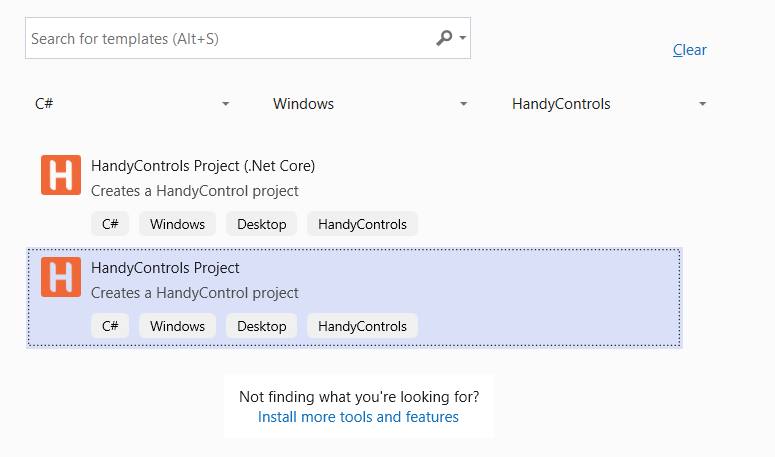
just download and install handycontrol template from marketplace. in this way you dont need to add anything. after installing hc, create new project with handycontrol template
Nuget Nightly Builds
If you want to get the latest changes at the same time as the change in the source code as a nuget package, you can use Nightly Builds.
WARNING
Nightly Builds are not recommended for use in products due to their instability.
Open Visual Studio and go to the Nuget settings via: Tools -> Options -> Nuget PackageManager -> Package Sources
Click the Add button
Enter a name
Enter the source
https://www.myget.org/F/handycontrols/- Click the OK button

Now when you want to install the nuget package change the source to the source you created
