Enables Windows 11 Snap Layout invocation from custom UI elements in the WinUI 3 title bar.
SnapLayoutManager listens to native window messages (WM_NCHITTEST, WM_NCRBUTTONDOWN) and reports a hit-test code that Windows recognizes as the maximize button. When the mouse hovers or clicks within the defined element’s screen bounds, Snap Layout UI will appear exactly as if the user had hovered over the system Maximize button.
This class allows you to assign any FrameworkElement in the title bar area as a trigger zone for Windows 11 Snap Layouts.
When the mouse interacts with that UI element, Snap Layouts will be shown automatically.
To ensure Snap Layout detection works correctly, keep the following rules in mind:
- The snap target element must be placed inside the
title bar region
Windows only checks the non-client (title bar) region for Snap Layout triggers.
If the element is not in that region, WM_NCHITTEST will never map to HTMAXBUTTON.
- The element must be on the top-most layer inside the title bar
If you place the trigger element inside another container that itself is inside the title bar, the OS may treat it as a child element and ignore its hit-testing.
This example won’t work because the button isn’t placed directly inside the TitleBar area. Instead, it’s wrapped by other layout elements (in this case, the TitleBar control itself).
1 | <Grid.RowDefinitions> |
ExtendsContentIntoTitleBarmust betrue
The Attach() method automatically enables this.
This is required so your UI participates in non-client hit-testing.
Methods
| Name |
|---|
| Attach |
| Detach |
Example
1 | <Grid.RowDefinitions> |
1 | var manager = new SnapLayoutManager(); |
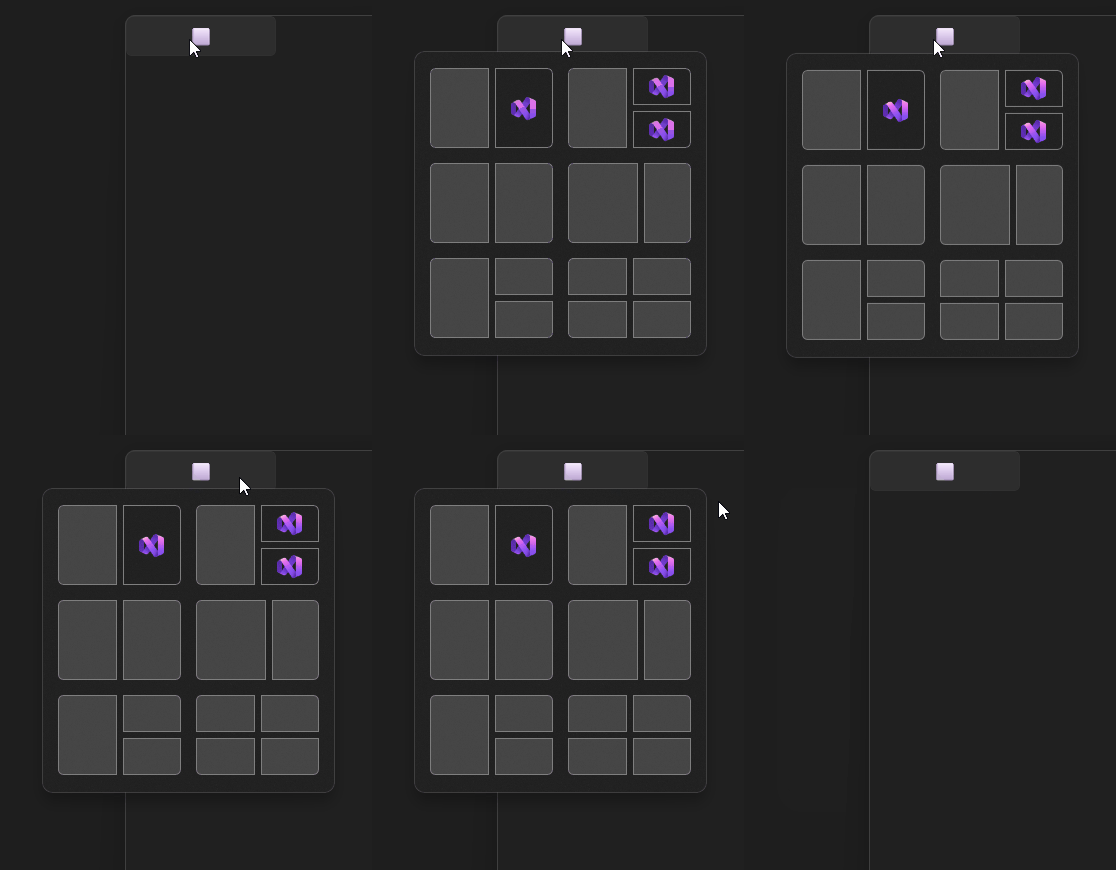
Demo
you can run demo and see this feature.