The ColorAnalyzer is a resource that generates a color palette from any UIElement, but most notably from an Image. After the palette is generated, you can use a Analyzer or collection of Analyzer items to select colors from the palette to bind to in the UI.
Properties
| Name |
|---|
| Source |
| Analyzers |
| AnalyzedColors |
Methods
| Name |
|---|
| UpdateAnalyzerAsync |
| UpdateAnalyzer |
Events
| Name |
|---|
| AnalyzerUpdated |
Available Analyzers
| Name |
|---|
| AccentColorAnalyzer |
| BaseColorAnalyzer |
| ColorWeightAnalyzer |
XXX ColorAnalyzer Properties
| Name |
|---|
| SelectedColors |
| MinColorCount |
AccentColorAnalyzer
The AccentColorAnalyzer can be used to extract accent colors from an image. An accent color is a color that stands out, which we detect by looking for colors following a “colorness” formula.
BaseColorAnalyzer
The BaseColorAnalyzer can be used to extract basic colors from an image. Basic colors are colors that standand out less stands out, which we detect by using the same “colorness” formula, as accent colors, but inverting the results.
ColorWeightAnalyzer
The ColorWeightAnalyzer can be used to determine which colors cover the most area in an image.
Using multiple Analyzer items
multiple Analyzer items can be used together in a single ColorAnalyzer to extract any combination of color data from an image.
Xaml Example
This guide demonstrates how to set up and use the ColorAnalyzer to extract colors from an image.
- Declare the Analyzer in Resources
First, define a ColorAnalyzer in your page’s resources. You can add one or multiple analyzers such as AccentColorAnalyzer, BaseColorAnalyzer, or ColorWeightAnalyzer inside it:
1 | <Page.Resources> |
You can use a single analyzer or a collection of analyzers depending on your needs.MinColorCount defines the minimum number of prominent colors the analyzer should extract.
The Source property should point to the element (e.g., an Image) you want to analyze.
- Bind the Analyzer to an Image
Add an image to your UI and bind it to the ColorAnalyzer via the Source property:
1 | <Image x:Name="ImageSample" |
The ImageOpened event ensures the analyzer is updated once the image is loaded.
If the image source changes, you must update the analyzer manually:
1 | private void ImageSample_ImageOpened(object sender, RoutedEventArgs e) |
- Access the Colors
You can now access the analyzed colors from each analyzer. For example, to set a background color:
1 | <Border> |
or
1 | <Border> |
SelectedColors returns a list of colors extracted by the analyzer.
You can access a specific color by index (e.g., [0] for the first prominent color).
CSharp Example
1 | var ColorAnalyzerSample = new ColorAnalyzer(); |
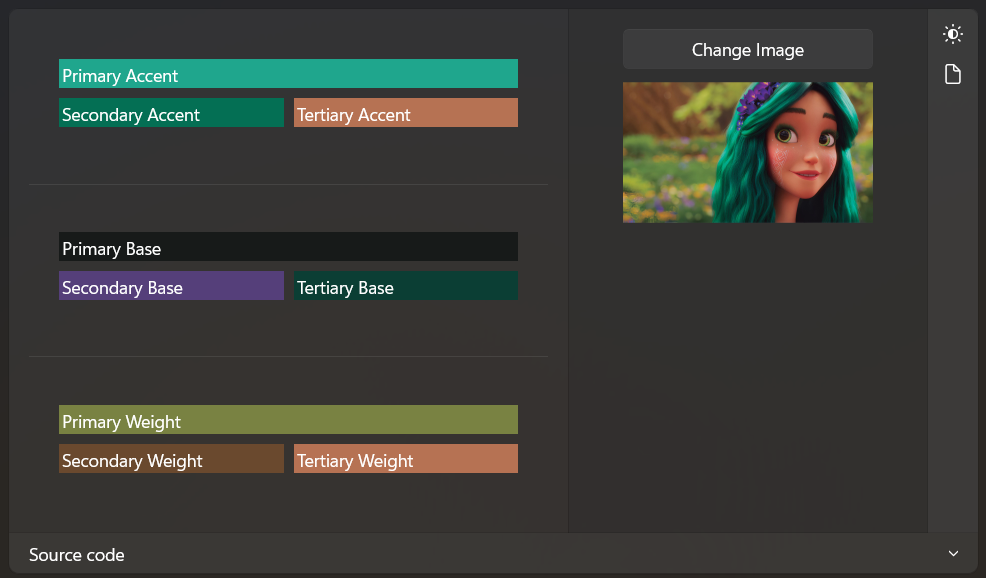
Demo
you can run demo and see this feature.